MISTICO DESIGN · FREE CAD TOOL
Custom Hatch Pattern Creator
Your dimensions. Your joints. Your drawing.
Create tile and brick hatch patterns, preview the layout and download a .pat file.
LIVE PATTERN PREVIEW
Preview fits the pattern to the window; dimensions in the download use your selected units. Very thin joints may be hard to see at this zoom.
View generated .PAT definition
REPEATING PROFILE
Design your own repeat
Set the repeat size, then adjust the width and height percentages to change the spacing. Curves export as short straight segments. For your own outline choose Custom polyline and enter x,y pairs on a 0–100 grid. Repeat the first point to close the outline. Start another row for a separate stroke.
MISTICO DESIGN · MATERIAL LIBRARY
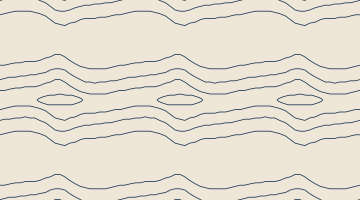
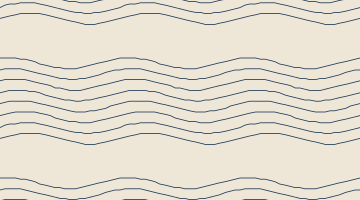
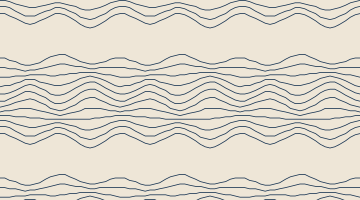
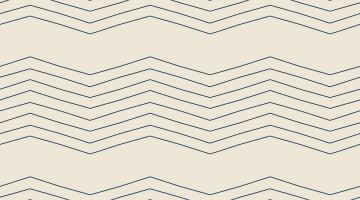
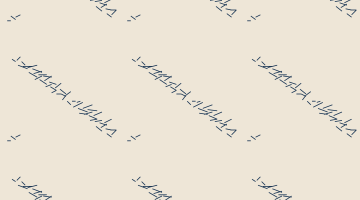
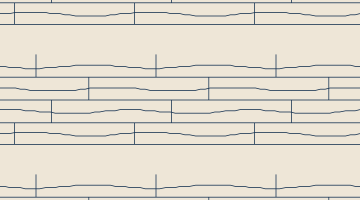
Ready-made wood hatch patterns
Pick a grain from the swatches below. Download the PAT for a 40 mm repeat, or choose Customize to change its scale, proportions and direction.
Download all 10 wood hatches (.ZIP)
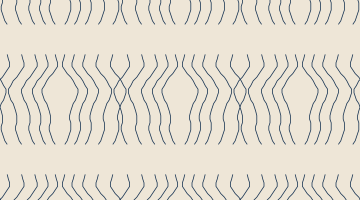
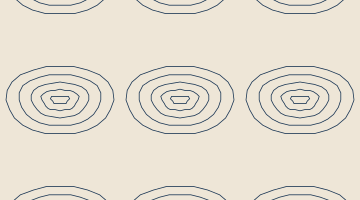
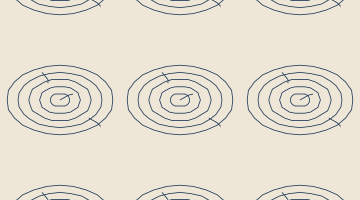
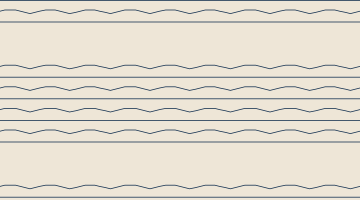
THE MISTICO DESIGN COLLECTION
Ready-made hatch patterns. Ready to download.
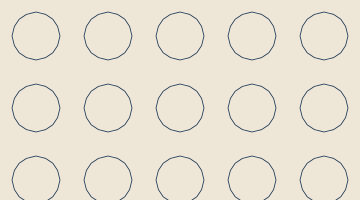
Choose an original MISTICO DESIGN tile, circle, star, leather-style or woven-fabric pattern and download its .PAT file directly. No editing or sign-up needed. All dimensions below are in millimetres; start with hatch scale 1 in a millimetre drawing. Circle patterns use 16 straight segments to approximate each circle. Pebbled Leather and Basket Weave Fabric are stylised line hatches for surface indication; adjust their scale to suit the grain or thread size you need.
MISTICO DESIGN
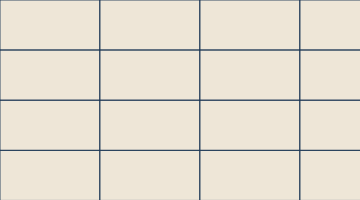
Classic Rectangle
600 × 300 mm · 2 mm joint
Stacked bond
MISTICO_TILE_600X300
Download .PAT ↓

MISTICO DESIGN
Architect Square
600 × 600 mm · 3 mm joint
Stacked bond
MISTICO_SQUARE_600
Download .PAT ↓
MISTICO DESIGN
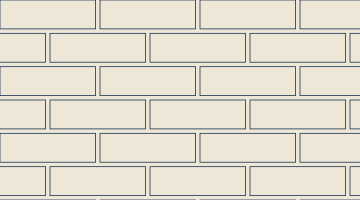
Heritage Brick
215 × 65 mm · 10 mm joint
Alternating half-bond
MISTICO_BRICK_HALF
Download .PAT ↓
MISTICO DESIGN
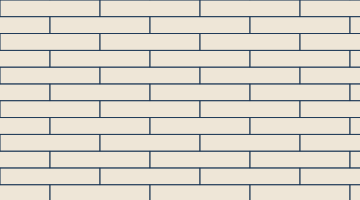
Linear Plank
1200 × 200 mm · 2 mm joint
Alternating half-bond
MISTICO_PLANK_1200
Download .PAT ↓
MISTICO DESIGN
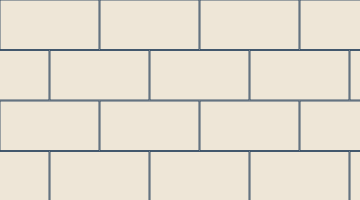
Studio Subway
200 × 100 mm · 2 mm joint
Alternating half-bond
MISTICO_SUBWAY_200X100
Download .PAT ↓

MISTICO DESIGN
Precision Grid
100 × 100 mm · 0 mm joint
Stacked bond
MISTICO_GRID_100
Download .PAT ↓
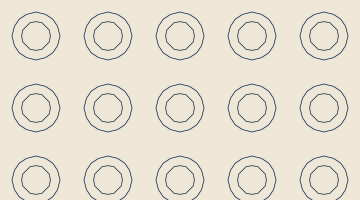

MISTICO DESIGN
Signature Five-Point Star
Five-point star · 70 mm grid
MISTICO_STAR_FIVE
Download .PAT ↓

MISTICO DESIGN
Compass Eight-Point Star
Eight-point star · 70 mm grid
MISTICO_STAR_EIGHT
Download .PAT ↓
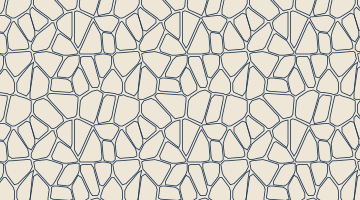
MISTICO DESIGN
Pebbled Leather
Irregular leather-style grain · 90 mm repeat
MISTICO_LEATHER_PEBBLE
Download .PAT ↓
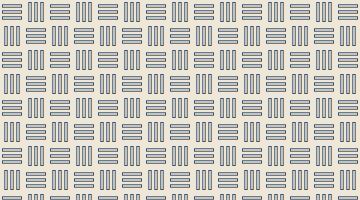
MISTICO DESIGN
Basket Weave Fabric
Alternating woven threads · 40 mm repeat
MISTICO_FABRIC_WEAVE
Download .PAT ↓
Follow the installation guide below to load your download in AutoCAD.
FROM PREVIEW TO DRAWING
How to use the custom hatch creator
- Choose a starting point. Select a tile, square, brick or plank preset, then enter the actual face width, height and joint width. Use the same units as your drawing.
- Set the layout. Choose stacked bond or staggered bond. A 50% offset creates a half-bond layout; other offsets apply to alternating rows.
- Name and download. Give the hatch a unique name and select Download .PAT file. Before installing a PAT, remove the parenthesised suffix and its leading space from the filename. For example, install the wood grain file as MISTICO_WOOD_GRAIN.pat so AutoCAD can match its internal pattern name.
- Install in AutoCAD. Save the file in a dedicated hatch folder. In Options → Files → Support File Search Path, add that folder. Open HATCH and select your pattern under Custom; restart AutoCAD if it does not appear.
- Check at scale 1. Apply the hatch inside a closed boundary, start with scale 1 and angle 0°, and measure one module. Adjust the hatch origin to suit your set-out. Review a test plot before issuing drawings.
The .pat format stores drawing-unit values; it does not automatically convert units. The unit selector converts the dimensions when switching between millimetres and inches. This tool creates line patterns, not material textures or construction set-out drawings.
Installation reference: Autodesk’s custom hatch installation guide.
DESIGNED AROUND YOUR PROJECT
Why use a custom hatch pattern?
Match the specified material
Represent the selected tile or brick size and joint rather than relying on a generic pattern. This makes finish layouts easier to read and coordinate.
Keep drawings consistent
Reuse one named pattern across plans, elevations and details. Share the same file with your drafting team to reduce repeated setup.
Explore the layout faster
Compare stacked and staggered joints before importing. A custom hatch helps communicate design intent, while dimensions and set-out notes still control construction.
Need coordinated finish layouts and production details? Explore our CAD drafting services and millwork shop drawings.
Hatch creator questions
Is the hatch pattern free to download?
Yes. Create and download patterns for your drawings without an account.
Can I make a pattern without grout?
Yes. Set the joint width to zero for a single-line tile grid or staggered bond.
Why does the downloaded hatch look too large or too small?
Check your drawing units and start at hatch scale 1. A millimetre pattern in an inch drawing needs unit conversion. Very dense patterns may also require a larger hatch scale to display.
Which CAD applications can use these files?
The download uses the AutoCAD .pat line-pattern format. Other applications may accept this format, but import options and restrictions vary. Revit-specific model or drafting pattern directives are not included. Test in your target application before use.